Editor’s Picks

Choosing small business MDM? We compare Prey, Iru, Hexnode, Miradore, NinjaOne — real pricing, setup time, and what each tool breaks on. For lean IT teams.
A practical MDM implementation checklist for small businesses — covering device inventory, security setup, emergency response, and maintenance.
Compare the 3 types of MDM GPS tracking (Operational, Security, Compliance) and find the best solution for your fleet, from Microsoft Intune to Prey.
BitLocker encrypts Windows drives at the volume level. Learn how it works, TPM requirements, and how to enable it via Intune or GPO across your fleet.
Data Security

Locked out by BitLocker? Find your recovery key fast using your Microsoft account, Azure AD, Intune, USB, or Command Prompt, plus why it happened and how to prevent it.
Remote wipe erases data on lost or stolen devices over the network. Learn how it works, what proves it succeeded, and when full vs. selective applies.
BitLocker encrypts Windows drives at the volume level. Learn how it works, TPM requirements, and how to enable it via Intune or GPO across your fleet.
Protect school-issued devices and student data. Learn key threats, FERPA requirements, and best practices to secure laptops, Chromebooks, and endpoints at scale.
Endpoint Management

How to run MDM for schools in 2026: managing 1:1 device programs, staying FERPA-compliant, recovering lost student devices, and choosing the right tools.
What MDM does on a laptop, what it costs, and how to choose one for a Windows, Mac & Linux fleet — without the vendor pitch.
A practical guide to BYOD MDM: choosing the right ownership model, separating work from personal with selective wipe, and getting employees to actually enroll.
Choosing small business MDM? We compare Prey, Iru, Hexnode, Miradore, NinjaOne — real pricing, setup time, and what each tool breaks on. For lean IT teams.
Cyber Threats

A practical, prioritized guide to data breach prevention: the 12 controls that matter, where to start with a lean team, and how to close the device gap most guides miss.
Discover what cyber threats are, where they come from, and how to prevent them. Learn about the most common attacks and explore prevention strategies.
Explore the secrets hiding in the dark web with this essential guide for IT leaders. Learn how to improve security and fight online dangers.
The increased autonomy that makes agentic AI so powerful also amplifies existing AI risks while introducing entirely new, unpredictable challenges that demand immediate security attention from organizations and security teams.
Discover Our E-Books Collection
Explore our diverse range of e-books on various topics.

In 2025, over 65 billion stolen identity records were circulating in criminal networks. Here's what that means for your organization and what you can do about it.
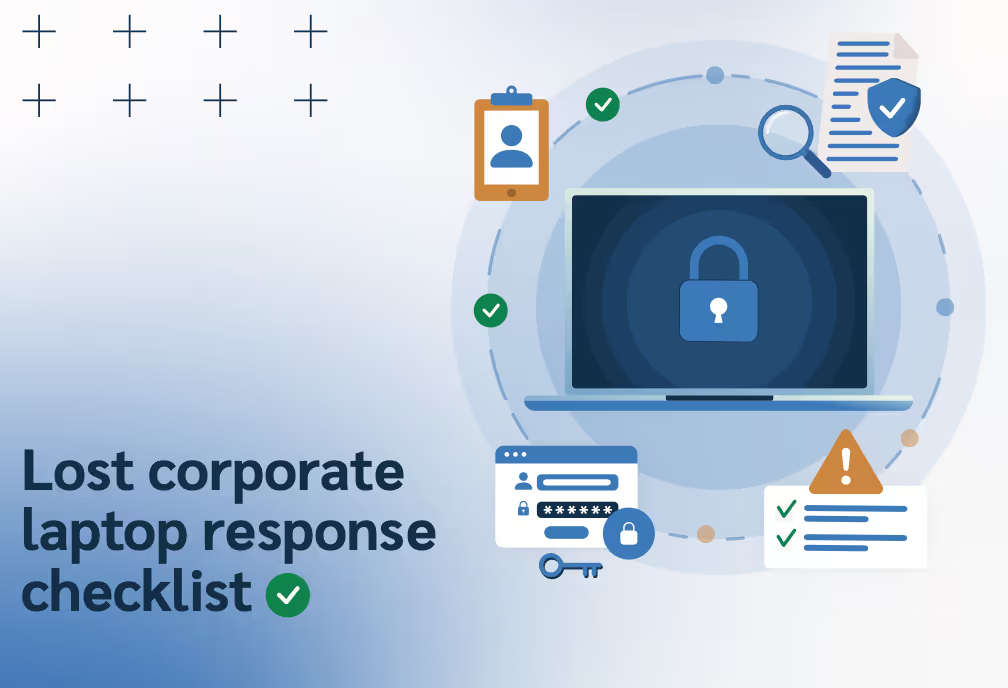
Don’t leave your data security to chance. Get the technical guide to containing, triaging, and reporting lost corporate laptops in under 24 hours.
Stop back-to-school 1:1 device chaos: audit, automate & secure every K-12 laptop with Prey